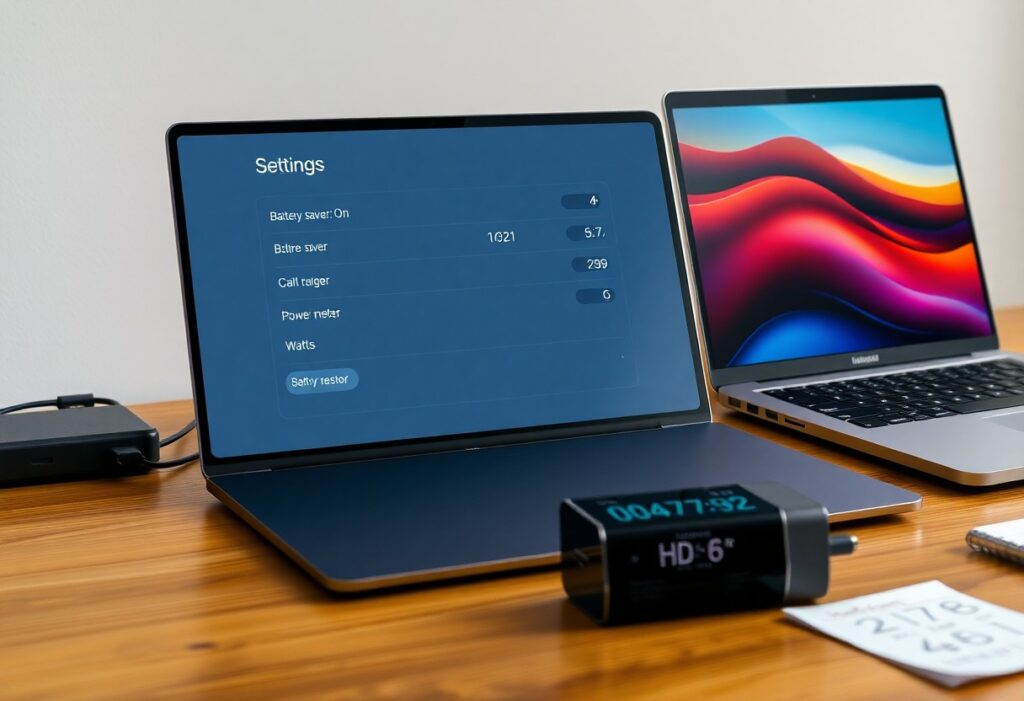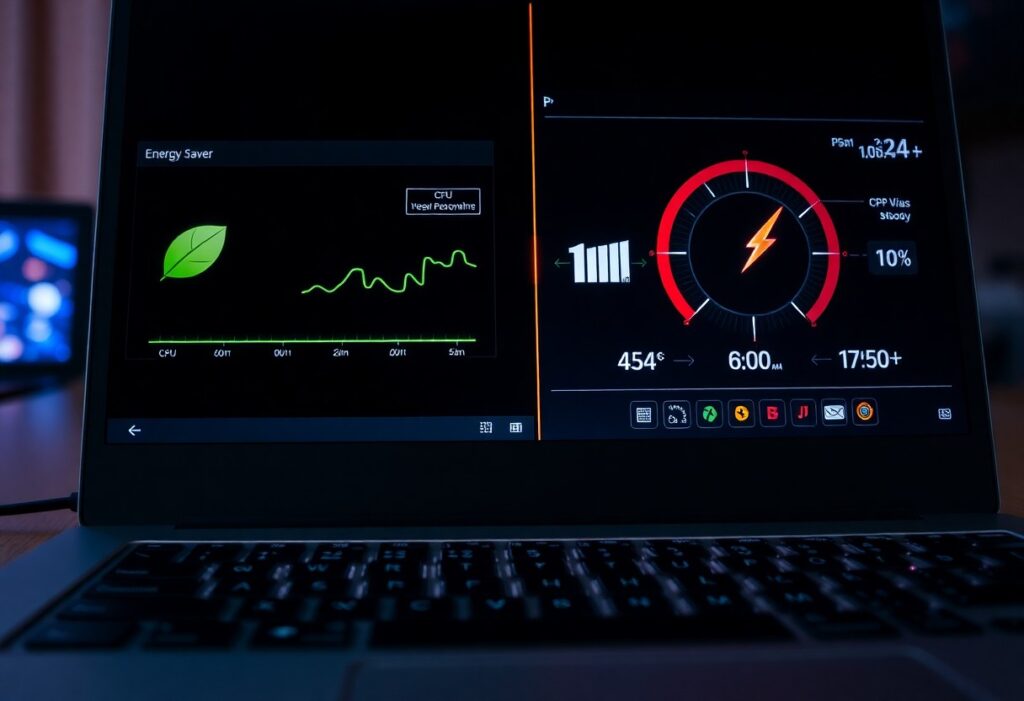
Most energy-saver modes reduce power use and can throttle performance, so you may notice lag; you can adjust settings to extend battery life while minimizing impact on responsiveness.
How energy-saver modes work
Energy-saver modes reduce power by lowering hardware activity so you get longer battery life at the cost of peak speed. They balance performance and efficiency by adjusting clocks, dimming displays, and deferring background work; expect slower bursts but extended run time.
Power-management mechanisms (CPU/GPU throttling, frequency scaling, sleep states)
Mechanisms like CPU/GPU throttling and frequency scaling reduce clock rates so you use less energy; sleep states cut power when idle. These changes trade peak responsiveness for lower thermals and longer battery, often felt as lag during heavy tasks.
OS, firmware and driver roles (schedulers, governors, thermal and background-task policies)
Systems coordinate policies so you don’t manually juggle settings: schedulers prioritize threads, governors pick frequency targets, and firmware enforces thermal limits. Together they protect hardware and shape responsiveness; changing defaults can improve battery or cause overheating or instability.
Firmware coordinates with the OS and drivers to enforce thermal and power limits; you rely on firmware to throttle hardware when temperatures rise. The OS scheduler (CFS) and governors (ondemand, powersave, performance) decide how quickly you get CPU time and clock ramps. Drivers expose device power states (D-states, runtime PM) and background-task policies determine what runs during idle. Tweaking governors or background limits can yield longer battery life or better responsiveness, but bypassing thermal controls risks overheating and hardware damage. Always monitor temperatures and test changes gradually.
Performance impact by device type
Generally you’ll find energy-saver modes affect devices differently: desktops and laptops hit power-plan and cooling limits, while mobiles shift SoC governors and radio duty cycles; you must balance lower power use against reduced peak performance.
Laptops and desktops (power plans, discrete GPU behavior, cooling constraints)
Desktops and laptops in energy-saver modes reduce CPU/GPU clocks and may disable discrete GPUs; you’ll see lower frame rates and slower workloads, especially if cooling is limited or power plans cap turbo.
Smartphones and tablets (SoC governors, display and radios, app background limits)
Mobile phones and tablets use SoC governors to cut clocks, dim displays, and throttle radios; you may notice app background limits and reduced network activity that save battery but impair responsiveness.
Additionally you should expect aggressive thermal and background restrictions that can stop background syncs, limit camera frame rates, and force apps into sleep; critical notifications may be delayed while energy-saving is active.
Components and workloads most affected
Many components and workloads suffer noticeable changes when you use energy saver: CPUs, GPUs, storage, fans, and network adapters can be throttled, causing reduced peak performance while offering longer battery life.
Compute- and graphics-intensive tasks (gaming, rendering, compilation)
Heavy compute and GPU workloads often run at lower clocks, so you may experience reduced frame rates, longer render times, and slower builds when you rely on energy saver.
Latency-sensitive activities (interactive apps, audio/video conferencing, network services)
Interactive, latency-sensitive apps can suffer increased input lag and jitter, causing stutters and audio glitches; you’ll notice degraded call quality, streaming hiccups, or lag in remote services.
Additionally, energy-saving modes lower CPU P-states, throttle GPU boosts, and enable NIC or disk power management, which raises latency and can cause dropped frames, missed packets, and poor call quality. You should disable aggressive power limits or pick a performance profile when you need real-time responsiveness to maintain reliable low latency.
Measuring real impact
When you quantify energy-saver effects, focus on real workload results and not mode labels; measure across scenarios to reveal significant slowdowns or negligible savings so you can judge trade-offs accurately.
Useful metrics and benchmarks (throughput, latency, FPS, battery/runtime)
Track throughput, latency, FPS and battery/runtime so you can compare the user-facing impact; prioritize latency for interactivity, FPS for graphics, and runtime for battery gains.
Test methodology (baseline, repeatability, thermal conditions, instrumentation)
Establish a clear baseline, run repeatable trials, control thermal conditions, and use proper instrumentation so results reflect real differences rather than noise; flag thermal throttling and measurement errors.
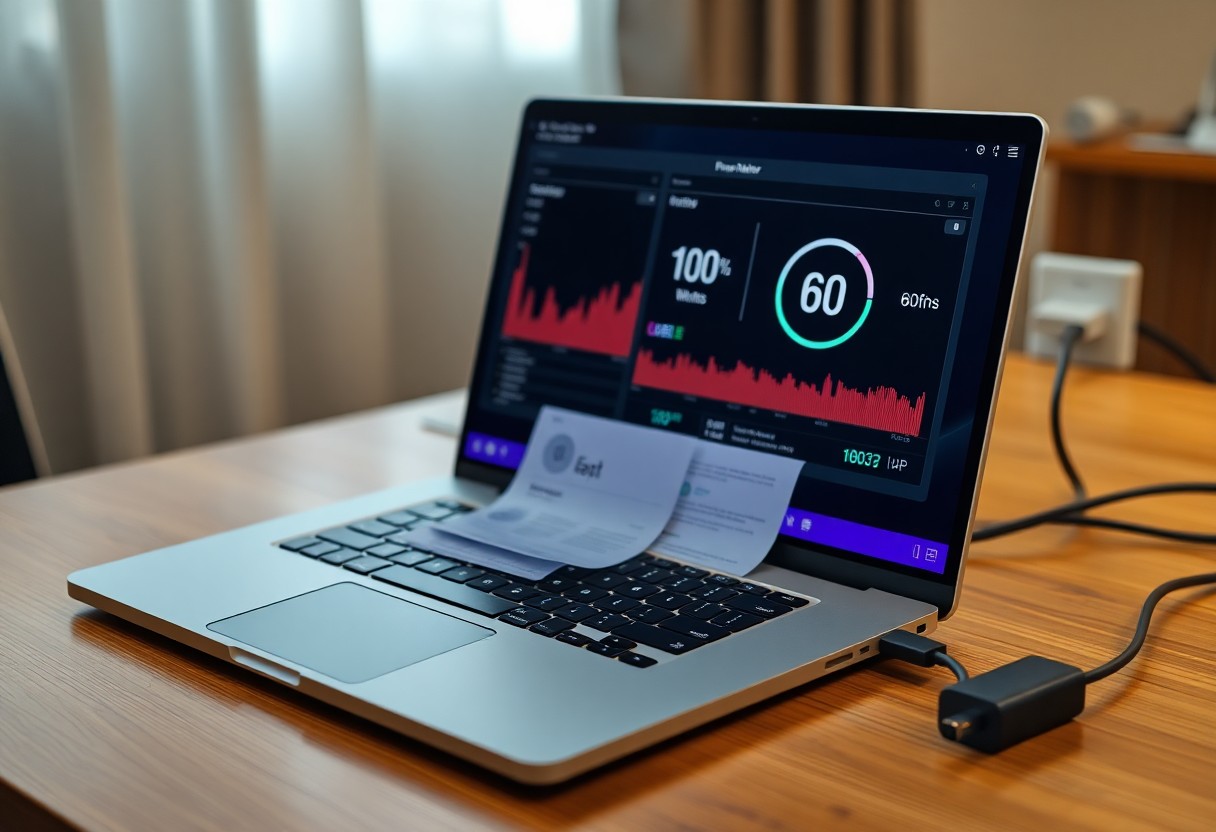
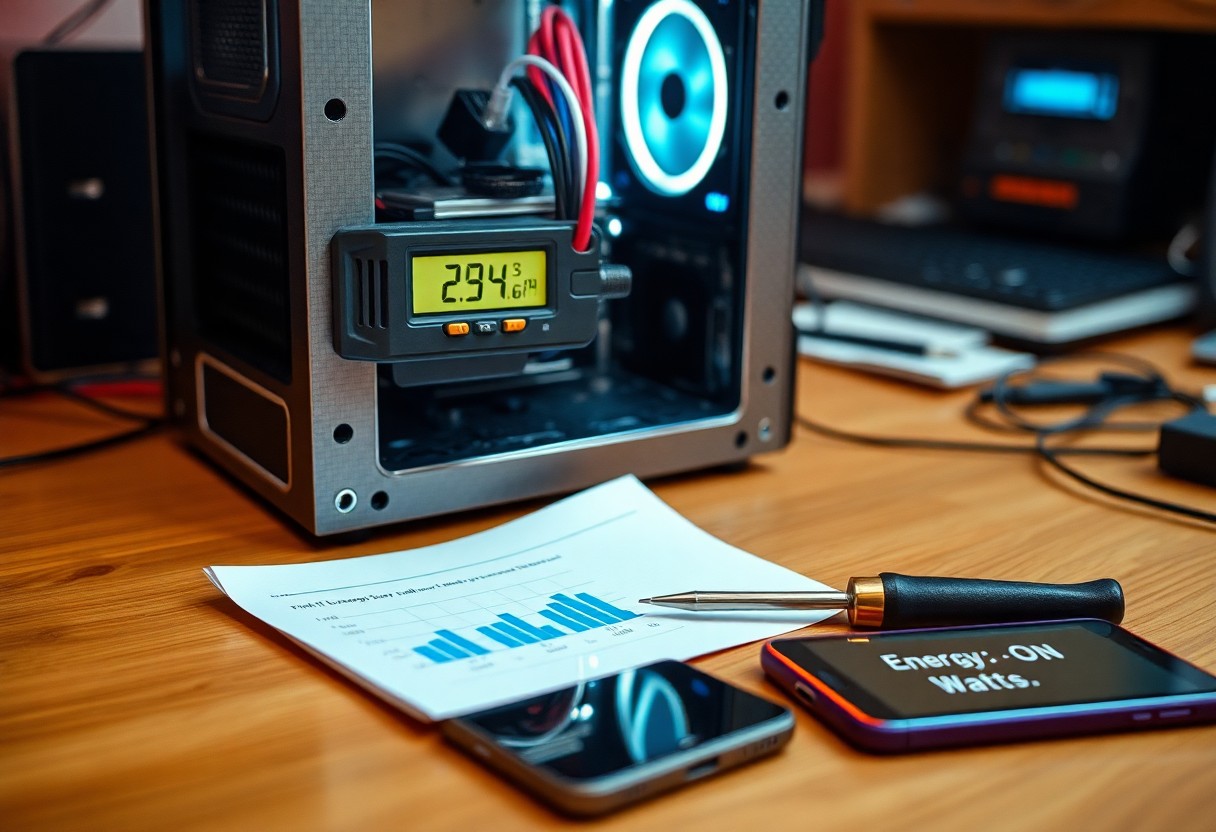
Ensure you define a consistent baseline (stock settings, full-power profile), perform multiple repeatable runs and randomize test order to avoid drift, and warm the device to stable temperature before measuring. Monitor CPU/GPU frequencies, surface thermals, and use high-precision power meters or external analyzers; report medians, variance, and confidence ranges so the actual impact is clear.
Balancing battery life and performance
Finding the sweet spot means you accept trade-offs: enable energy saver for longer runtime but be aware it will reduce peak performance during demanding tasks.
When to enable energy saver (mobility needs, idle vs active use)
If you’re often away from a charger or mostly idle, turn on energy saver to extend uptime; disable it for active, heavy work like gaming or video editing to keep responsiveness high.
Tuning options (adaptive modes, per-app exceptions, custom power plans)
Adjust adaptive modes to throttle background tasks, use per-app exceptions to keep critical apps responsive, and create custom plans that prioritize either performance or battery life based on how you work.
Additionally, whitelist key apps to maintain speed, limit CPU peak states, lower refresh rates, and schedule syncs; always monitor temperature and responsiveness after changes to avoid unexpected slowdowns.
Myths, caveats and best practices
Many supposed trade-offs are overstated; you should treat energy-saver settings as tools, not absolutes-measure impacts, document exceptions, and prefer targeted rules over system-wide cuts.
Common misconceptions (energy saver always equals poor performance)
Sometimes you’ll hear that energy saver always causes sluggish apps; that’s false for many modern CPUs and tunable OS policies-profile your tasks and adjust profiles rather than assuming universal slowdown.
Practical recommendations for users and administrators
Start by setting conservative defaults, then benchmark critical workloads; you should enable aggressive saver only for idle periods, keep thermal and battery limits monitored, and document policy exceptions.
Additionally, you should create a testing matrix that covers representative workloads, measure latency and throughput, and log power and temperature. For administrators, apply conservative group policies, roll out changes to pilot groups, and use telemetry to define safe thresholds. If you support real-time services, configure exceptions and prioritize scheduling to avoid service degradation; otherwise, document energy-saving gains for stakeholders.
Summing up
From above, you see that enabling energy saver can lower performance by throttling CPU/GPU, dimming displays, and limiting background tasks, though for everyday tasks you may not notice significant slowdowns; adjust settings to balance battery life and responsiveness based on how you use the device.
FAQ
Q: Does enabling Energy Saver reduce device performance?
A: Yes. Energy Saver works by lowering CPU and GPU frequencies, reducing screen brightness and refresh rate, limiting background activity, and applying stricter thermal limits. Those changes cut power draw but also slow sustained workloads (compilation, video rendering, large spreadsheets) and peak-demand tasks (gaming, real-time audio processing). For light tasks like web browsing, email, or document editing the difference is often minimal; for heavy or latency-sensitive tasks the reduction can be large and noticeable.
Q: Which activities are most affected and how big is the impact?
A: CPU- and GPU-bound tasks see the largest impact – benchmarks and real-world tests often show 10-50% lower throughput depending on hardware and how aggressively the power profile throttles clocks. Games will show lower frame rates and potentially more stutter, long video transcodes take longer, and synthetic workloads hit lower sustained scores. I/O-bound tasks (web pages, simple file copies) and short burst operations are less affected because they finish before throttling becomes dominant. Latency-sensitive workloads (audio, live streaming, high-frequency trading software) can be degraded by core parking and power-state transitions.
Q: How can I reduce the performance hit while keeping better battery life?
A: Use a balanced approach: switch to a moderate power profile or set a higher “maximum processor state” in Windows or disable low-power mode for specific apps on macOS/iOS/Android. On laptops, keep the device plugged in for peak performance or create custom profiles that raise CPU/GPU limits only when specific apps run. Close background apps and disable aggressive dimming or refresh-rate drops if you need smoother visuals. For testing, compare benchmarks and monitor CPU/GPU frequencies and temperatures to verify trade-offs; adjust the profile until you hit the desired balance between battery life and acceptable performance.