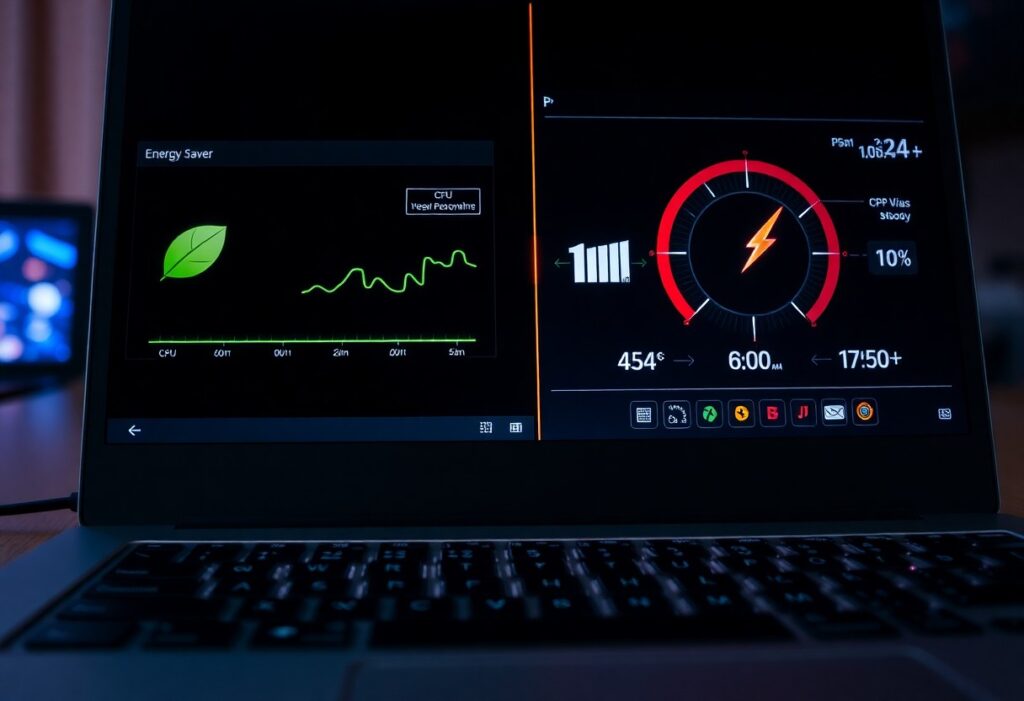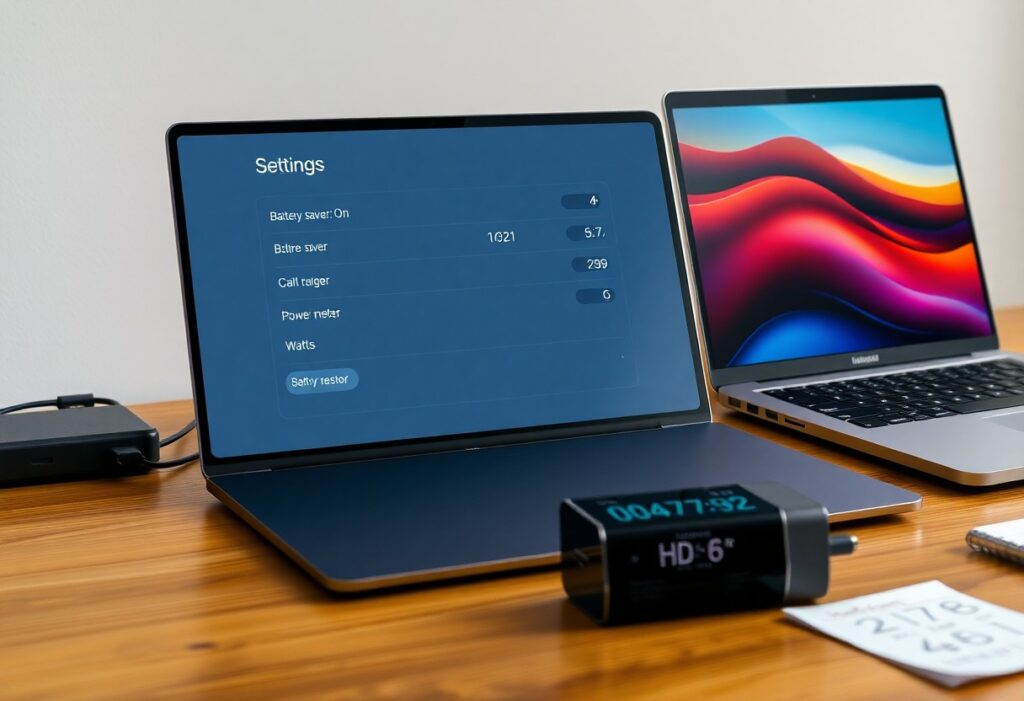
With energy saver on your laptop, you control power to extend battery life, but it often limits CPU/GPU speed and background tasks-extends battery life, reduces power use, yet can degrade performance or cause compatibility issues.

How Energy Saver modes work
Energy saver modes adjust hardware settings-CPU, display, sleep-to cut consumption so you extend battery life, but you may see reduced performance or disabled background tasks.
Power-management mechanisms (CPU scaling, display dimming, sleep)
Adaptive CPU scaling reduces clock speeds, display dimming lowers brightness, and sleep suspends activity, so you get significant power savings, though these changes can interrupt demanding apps.
Differences between system-level and application-level controls
System-level controls set hardware-wide policies, while application-level controls let you tune per-app behavior, so you choose between broad energy limits and fine-grained exceptions.
Practically, system policies apply globally-throttling CPU, dimming screens, and enforcing sleep-so all apps are affected; applications can request exemptions or higher performance for tasks like video or backups, but the OS may block those requests to save energy. You should prioritize necessary apps and allow exceptions when you need consistent performance or real-time background work.
Measured impact on battery life
Tests show energy saver modes often yield small but real gains, typically 5-20% under light use; heavier tasks reduce benefit and may cause performance drops. Assume that you will see variable results depending on settings.
Laboratory vs real-world test results
In labs, controlled benchmarks report consistent savings, but in real use you get lower gains due to background apps and network activity. Assume that you should expect smaller, more variable improvements when you actually work on your laptop.
- lab tests
- real-world
Workload and hardware factors that change savings
Different apps and CPUs change outcomes: CPU load, GPU use, and screen brightness shift savings dramatically. Assume that your mileage will depend on the tasks you run and the components inside your machine.
- CPU load
- GPU use
- brightness
Furthermore, background services, thermal limits, and battery age can cut potential gains; a throttled CPU may lower perceived benefit despite reduced power draw. Assume that updating drivers, limiting background tasks, and tuning settings can maximize real-world savings for you.
- background services
- thermal limits
- battery age
Common energy-saver settings
Typical energy-saver menus let you set sleep timers, dim displays, scale CPU performance, and suspend peripherals; you can tailor these to extend battery life or lower heat. Use sleep timers, brightness reduction, and USB suspend for best savings without sacrificing usability.
Display, CPU, and peripheral power options
Adjust display brightness and timeout first, since lower brightness yields big savings; you can enable CPU frequency scaling to reduce power but this may lower performance. Also enable USB and peripheral suspend to avoid idle drain.
Platform differences: Windows, macOS, Linux
Across platforms you’ll find different controls: Windows Power Plans, macOS Battery/Power settings, and Linux tools like TLP or systemd. Each exposes varying granularity, so you must choose settings that match how you use the laptop.
Additionally, drivers and firmware affect outcomes; on some hardware aggressive saving profiles can cause instability or reduced performance. Test profiles, monitor temps and responsiveness, and revert changes if peripherals misbehave.
When energy saver helps most
Typically, energy saver gives the biggest benefit during low-demand use: it throttles background activity, dims the display, and extends runtime so you can work longer. If you prioritize battery life over peak speed, enabling it yields noticeable runtime gains with little impact on basic tasks.
Low-intensity tasks, idle periods, and background usage
During light browsing, document editing, or long idle stretches, you’ll see the clearest savings because the system scales back CPU, network, and refresh rates. Letting it run in these moments yields consistent battery extension without disrupting everyday work.
Travel, battery aging, and emergency scenarios
Traveling or managing an aged battery, you’ll benefit from limiting background apps and lowering brightness; energy saver can buy critical extra hours in emergencies but won’t fix capacity loss from aging.
Moreover, when you’re on the move combine energy saver with practical steps: enable airplane mode in low-signal areas, disable background sync, shorten screen timeout, and close high-drain apps. Carry a quality power bank and set priority apps to preserve connectivity. Understand that energy saver reduces consumption but cannot reverse battery wear; plan charging access or battery replacement for long trips.
Trade-offs and limitations
While Energy Saver can extend your runtime, you trade responsiveness and advanced features; gains are often modest on newer chips and depend on workload, hardware, and settings.
Performance, responsiveness, and thermal consequences
Reducing CPU speeds and screen brightness helps battery, but you’ll notice slower app launches, choppy UI, and potential thermal throttling under sustained load; expect reduced responsiveness during heavy tasks.
Background apps, drivers, and inefficiencies that reduce gains
Hidden background processes, poor drivers, and inefficient apps keep cores awake and networking active, cutting practical savings; you must manage services and update drivers to regain battery life.
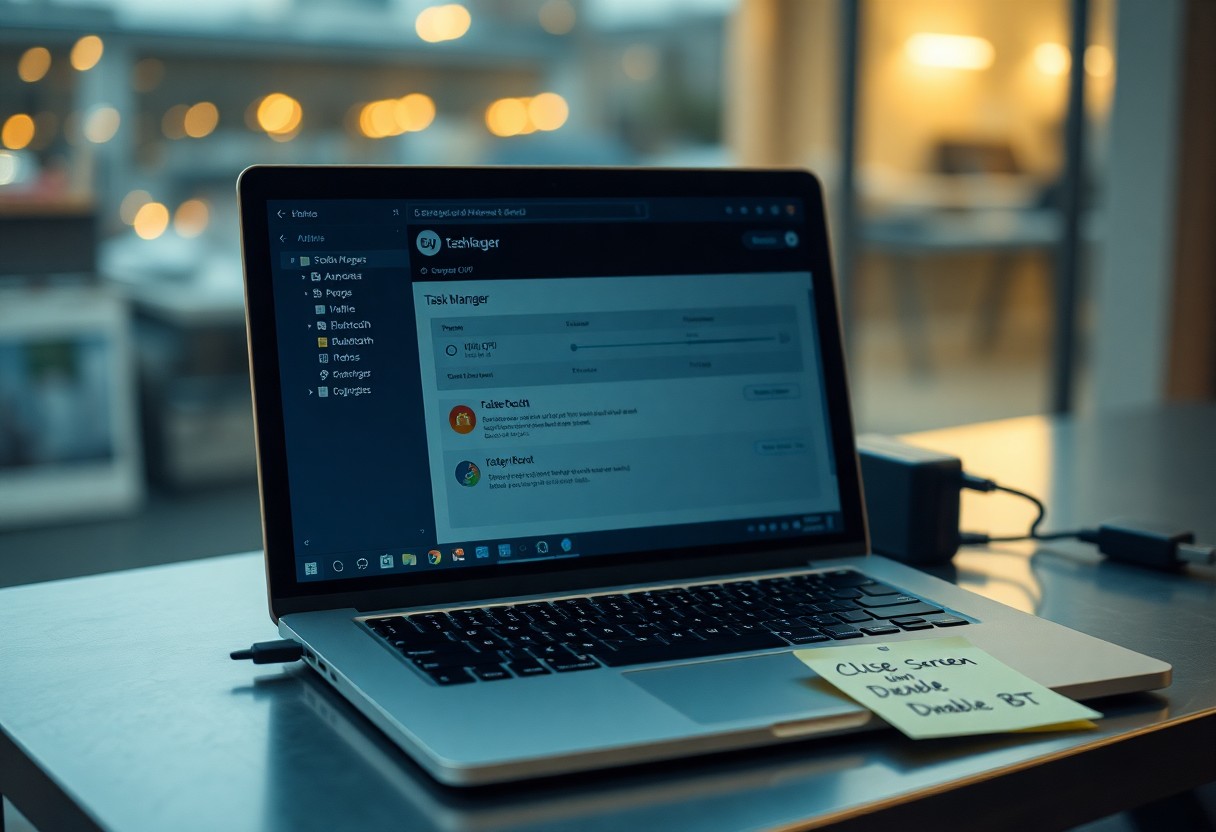
Additionally, background sync, telemetry, antivirus scans, and misconfigured drivers can negate Energy Saver; disable nonvital startup apps, turn off wake timers, and install vendor power-aware drivers so you actually see the advertised battery improvements.
Practical tips to maximize battery life beyond Energy Saver
Practical tweaks extend your battery life beyond Energy Saver by combining system settings, hardware adjustments, and disciplined habits. Perceiving the trade-offs helps you balance performance and longevity.
- Lower brightness and timeout settings
- Enable automatic updates and background app limits
- Clean and manage storage to reduce load
- Use proper charging cycles and original charger
- Avoid high temperatures to prevent damage
Hardware and software adjustments (brightness, updates, storage)
Adjust screen brightness, enable automatic updates, and trim unnecessary storage to reduce background load and extend battery life; you’ll notice less heat and fewer power spikes.
Usage habits and maintenance (charging practices, cooling)
Optimize charging cycles, avoid full discharges, and keep vents clear to maintain optimal cooling; these habits preserve battery life and reduce degradation.
Maintain charging between about 20-80%, avoid overnight constant charging when possible, and always use the original charger; if the laptop runs hot, shut it down and let it cool-prolonged exposure to high temperatures accelerates wear, while storing long-term at roughly 50% helps preserve capacity.
To wrap up
From above you can see energy saver modes do work to reduce power draw by dimming the screen, throttling the CPU and suspending unused hardware, but effectiveness varies by settings, workload and hardware; use them alongside manual adjustments to extend battery life.
FAQ
Q: Does the energy saver mode on a laptop actually extend battery life?
A: Yes. Energy saver modes cut power draw by reducing screen brightness, limiting CPU/GPU turbo frequencies, suspending or throttling background apps and services, and turning off nonimportant peripherals (Bluetooth, card readers, etc.). The real-world battery uplift depends on what you do: for light tasks like web browsing or document editing you can expect a noticeable gain (often 10-40%), while for video playback or gaming the benefit is smaller because display and GPU use dominate consumption.
Q: What specific changes happen when I enable energy saver?
A: The OS applies a bundled set of settings: it lowers display brightness and timeout, enforces lower CPU performance states (reduces max clock and disables aggressive boosting), limits background network activity and push fetching, delays or pauses background tasks and updates, and may spin down storage and reduce peripheral power. Some systems also alter GPU power profiles or reduce screen refresh rate. Exact changes vary by vendor and can be customized in power settings.
Q: When should I use energy saver and what are the trade-offs?
A: Use it when you need longer battery runtime-travel, meetings, or when an outlet isn’t available. Trade-offs include reduced responsiveness and slower application performance (noticeable in gaming, video editing, and heavy multitasking), dimmer displays, delayed notifications or background sync, and occasionally slower wake/resume behavior. For maximum runtime, combine energy saver with manual steps like closing unused apps, lowering brightness, and disabling unused radios.