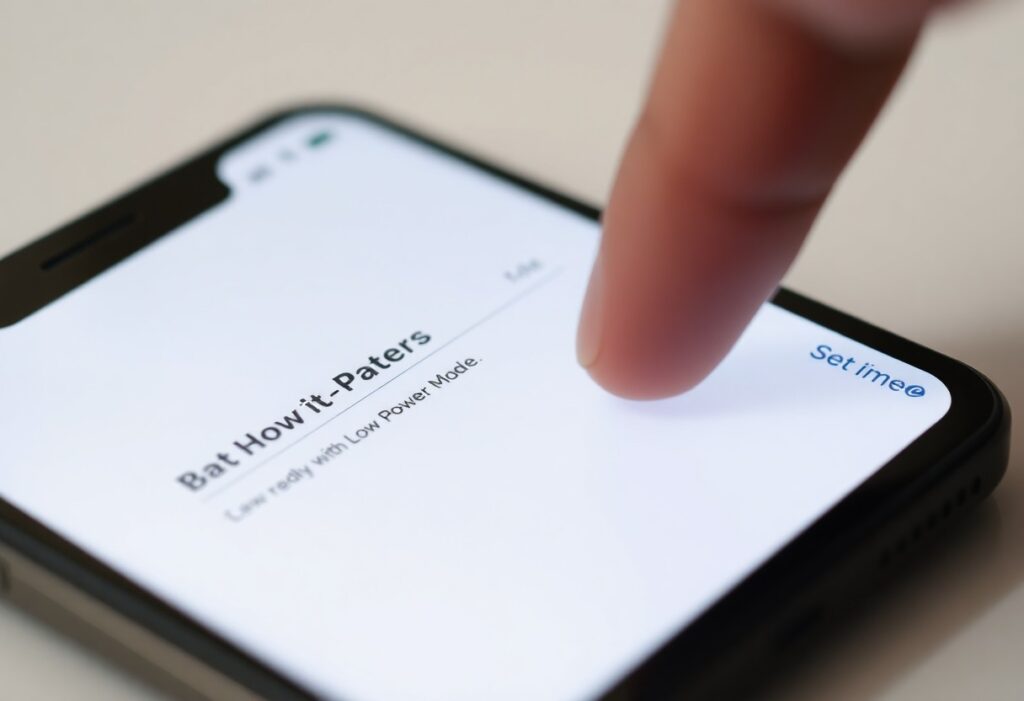
iPhone Settings > Battery shows Low Power Mode; enable it to extend your battery life, but background activity and notifications may be delayed; you gain hours of use.
Locating “Low Power Mode” on iPhone
Within your iPhone you can access Low Power Mode from Settings, Spotlight, or the Control Center if added; toggling it reduces background activity and extends battery life when you need it most.
Settings app: Battery path
Open Settings, tap Battery, then flip the Low Power Mode switch to limit background tasks and visual effects; you’ll see battery percentage behavior change and immediate savings.
Spotlight search and Control Center hints
Swipe down for Spotlight and type “low power” to locate the setting, or pull Control Center to use a dedicated toggle if you’ve added Low Power Mode for faster access.
If you add Low Power Mode in Settings > Control Center you gain one-tap control for the quickest activation; Spotlight typically opens the Battery setting rather than toggling directly, so the Control Center control provides the fastest activation method.
Turning Low Power Mode on and off
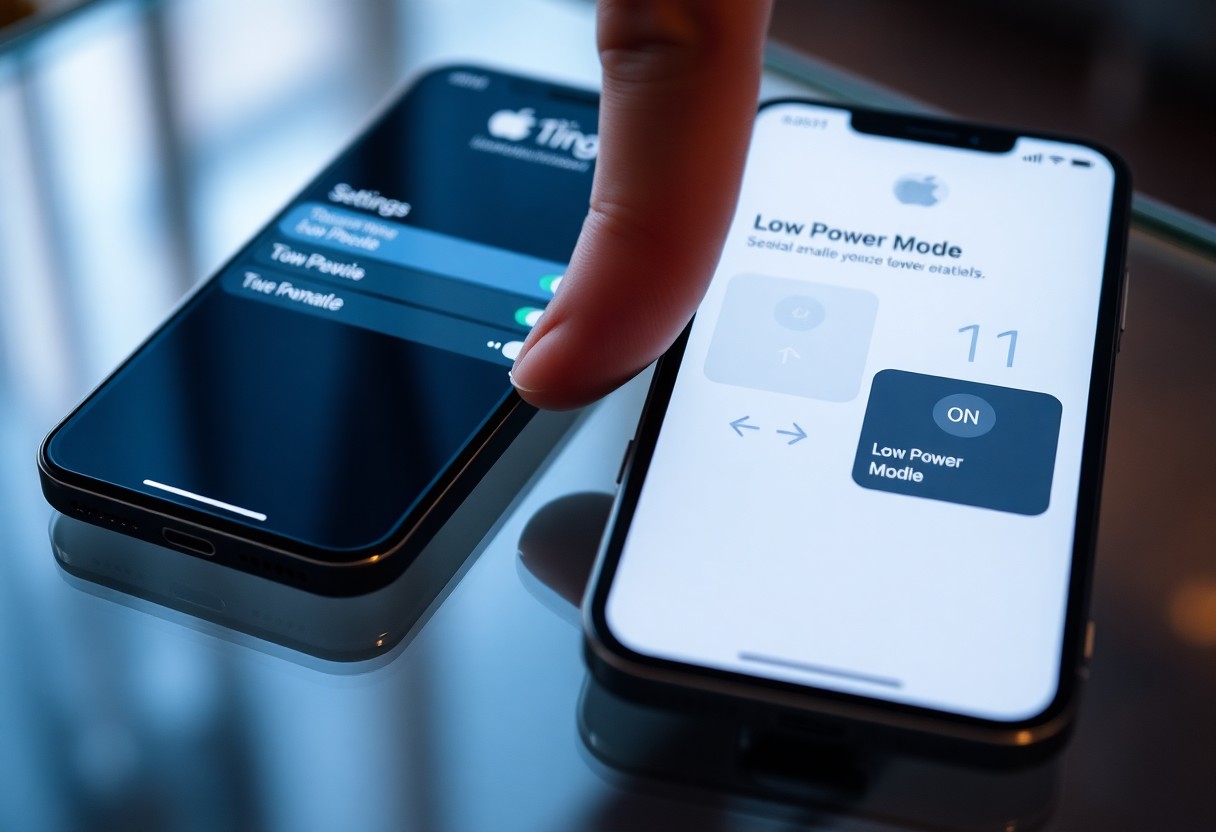
When you need to manage power, you can toggle Low Power Mode on or off quickly via Settings or Control Center; it reduces background activity and temporarily limits features to extend battery life, and iOS may also offer an automatic prompt when your battery gets low.
Manual toggle in Settings and Control Center
To enable it manually, open Settings > Battery and switch Low Power Mode on, or add the control in Control Center for one‑tap access; you’ll see reduced mail fetch, background app refresh, and visual effects while it’s active.
Automatic prompts at low battery levels
If your battery drops near 20% (and again at 10%), iOS will prompt you to enable Low Power Mode; you can accept to save power immediately or dismiss the notice without changing settings.
Additionally, when you accept the prompt or enable it manually, Low Power Mode automatically turns off after charging above 80%, and you should know it suspends some background tasks to extend runtime while keeping data intact.
Adding quick access methods
Enable faster access by placing shortcuts where you can reach them: add Low Power Mode to the Control Center or set voice and automation toggles so you can save battery with fewer taps.
Adding Low Power Mode to Control Center
Open Settings → Control Center, tap the plus next to Low Power Mode, then swipe to access Control Center and toggle it quickly whenever your battery runs low.
Using Siri and Shortcuts to toggle
Ask Siri to enable Low Power Mode, or make a Shortcut that lets you toggle it by voice, from the Home Screen, or via automation for scheduled battery savings.
Alternatively, create the Shortcut in Shortcuts: tap + → Add Action → search “Set Low Power Mode”, choose On/Off/Toggle, then add to Home Screen or make an Automation triggered by time or Battery Level. If you disable Ask Before Running it runs automatically, though it can change background app refresh and notifications.
What Low Power Mode actually does
Understanding Low Power Mode, you get extended battery by reducing background activity, limiting visual effects, and throttling CPU/GPU. Some features like mail fetch and automatic downloads are paused, so you trade convenience for longer battery life.
System behaviors reduced (background refresh, mail fetch, visual effects)
Several system behaviors are curtailed: background app refresh stops, mail fetch switches to manual, visual animations are reduced, and automatic downloads pause. You’ll see fewer background updates and simplified graphics to save power.
Performance and connectivity trade-offs
Expect reduced peak performance as the system throttles CPU and GPU. Network activities like push notifications, background fetches, and iCloud syncing are limited, so you may notice slower apps and delayed alerts while saving significant battery.
Consequently, you’ll find that CPU performance is reduced, app launch times and animations may slow, and frame rates can dip. Background location updates, iCloud sync, and automatic backups are paused, so notifications may be delayed and background transfers won’t run until you disable Low Power Mode or charge your device.
When Low Power Mode disables itself
Sometimes Low Power Mode turns off automatically when conditions change, such as reaching a charge threshold or iOS restoring full performance. You can re-enable it manually or use Shortcuts automation to resume it at a specific battery level.
Charging thresholds and automatic turn-off
Charging thresholds typically disable Low Power Mode near 80% charge, though iOS can vary; after charging stops or battery drops it won’t re-enable without your action or an automation.
App exceptions and iOS version differences
Certain apps can continue background activity despite Low Power Mode, and behavior can differ across iOS versions; if you rely on strict savings, check app settings and update iOS to ensure consistent power restrictions.
Additionally, you should inspect which apps are exempt: some messaging, navigation, and health apps request background tasks or location updates that override savings. If an older iOS allowed looser background activity, upgrades often impose stronger limits; conversely, some updates introduce new exceptions. To control behavior, disable Background App Refresh per app, restrict location to “While Using,” and monitor Battery settings-this lets you maintain better battery savings and avoid unexpected drain.
Troubleshooting common issues
When common problems occur, verify your iOS version, reboot the device, and inspect Screen Time or configuration profiles that can restrict features. If Low Power Mode still misbehaves, try resetting network settings or contacting Apple Support for further diagnostics.
Low Power Mode option missing or greyed out
Sometimes the Low Power Mode toggle is missing or greyed out because your iPhone is supervised or controlled by restrictions. You should check Screen Time restrictions, installed profiles (Settings > General > VPN & Device Management), and install any pending iOS updates to restore the option.
Mode not staying enabled or battery reporting inconsistencies
Occasionally Low Power Mode disables itself when your battery charges past 80% or after a restart; inconsistent reporting can signal calibration or hardware issues. You should update iOS, inspect Battery Health, and test behavior after resetting settings.
If Low Power Mode keeps turning off, confirm it’s not being toggled by Shortcuts automations, charging behavior, or an app. The system automatically disables Low Power Mode at about 80% charge, so check Optimized Battery Charging and any automations. For erratic battery readings, calibrate the battery by fully charging to 100% then draining to shutdown once, update iOS, reset all settings if needed, and seek service if Battery Health shows significant degradation or continued abnormal behavior.
To wrap up
As a reminder, you can find Energy Saving (Low Power Mode) on your iPhone in Settings > Battery; enable Low Power Mode there or add its toggle to Control Center for quick access.
FAQ
Q: Where is Energy Saving Mode (Low Power Mode) on my iPhone?
A: Open Settings, tap Battery, then toggle Low Power Mode on or off. When Low Power Mode is active the battery icon in the status bar turns yellow. iPhones running iOS 9 and later include this feature; the system will also offer to enable it automatically when battery level falls to about 20%.
Q: How can I put Energy Saving Mode in Control Center for quick access?
A: Go to Settings > Control Center > Customize Controls (or Settings > Control Center on newer iOS), find Low Power Mode under More Controls, and tap the green + to add it. To use it, open Control Center (swipe down from the top-right corner on Face ID devices or swipe up from the bottom on Touch ID devices) and tap the Low Power Mode icon. You can also ask Siri: “Turn on Low Power Mode.”
Q: What does Energy Saving Mode change and when should I use it?
A: Low Power Mode reduces power use by pausing background app refresh, disabling automatic downloads and some visual effects, limiting CPU/GPU performance, reducing mail fetch frequency, and shortening auto-lock time. Use it when battery level is low or when you need extended battery life between charges; disable it when you need full performance or uninterrupted background activity.