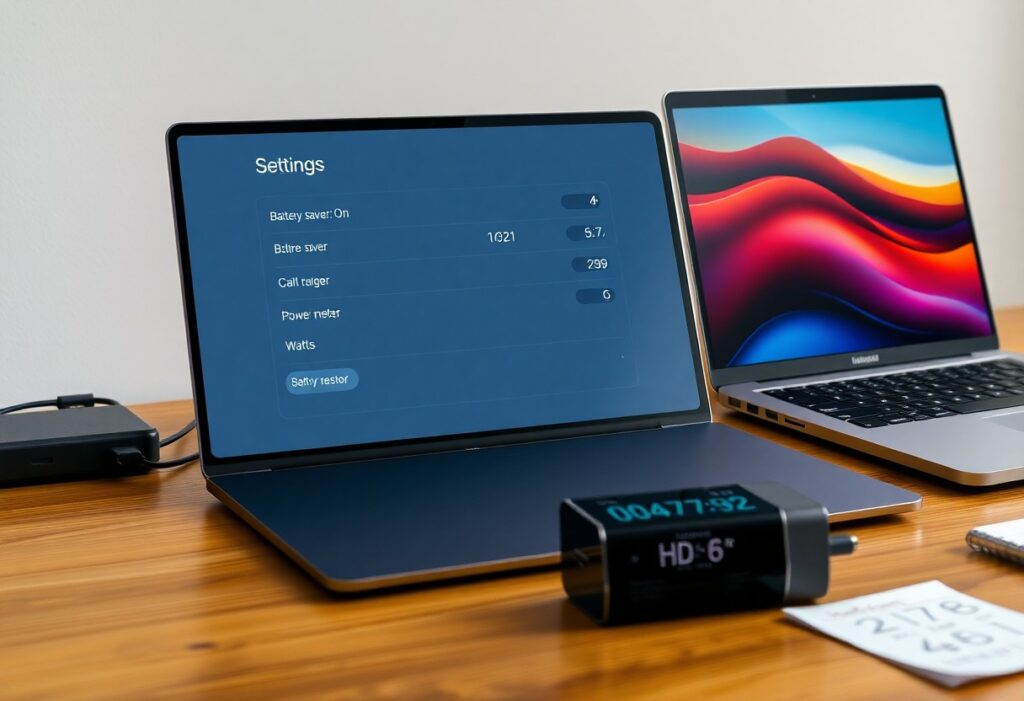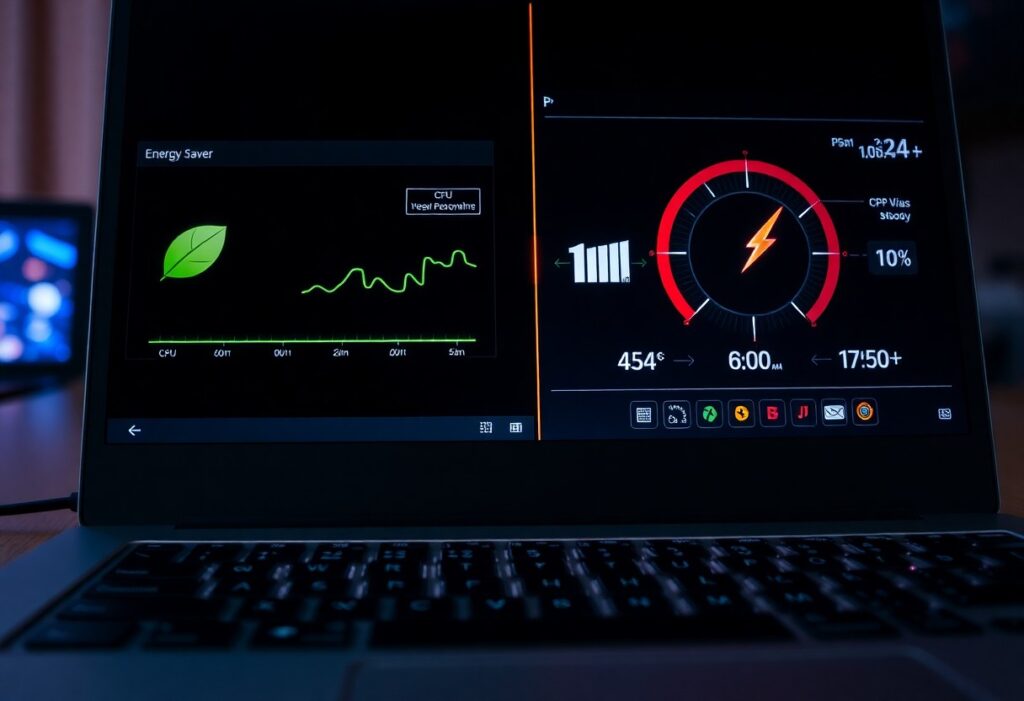
Just enable power saving when you need to extend battery life: it significantly prolongs runtime, but may cause reduced performance and limit background tasks; you should use it to prevent unexpected shutdowns and reduce heat while preserving vital functions.
Finding Power Saving Mode
Locate the power-saving option in your device’s system menus or quick panels; you’ll find it under battery or performance sections. Use Quick Settings toggles for a fast switch, or look into Settings for granular controls-both can extend battery life when you need it most.
On Android devices (Settings, Quick Settings, OEM shortcuts)
Access Android’s Settings > Battery or pull down the Quick Settings shade to toggle power saving. Many manufacturers add OEM shortcuts (long-press battery icon or custom gestures). Be aware these modes can reduce performance to preserve battery.
On iOS, macOS and Windows (Low Power / Battery Saver locations)
Tap Settings > Battery on iOS to enable Low Power Mode, use System Settings > Battery on macOS, or Settings > System > Power & battery on Windows to turn on Battery Saver; these options limit background activity to extend runtime.
Additionally, you can tweak each platform’s power options: on iOS disable Background App Refresh and adjust fetch intervals, on macOS disable Power Nap and set sleep schedules, and on Windows change screen and sleep timers or set a Battery Saver activation threshold-these steps boost longevity but may limit performance or delay notifications.
What Power Saving Mode Does
When active, power saving mode limits system resources to extend battery life: it reduces background activity, lowers screen brightness, and restricts network use so you get more uptime at the cost of responsiveness. Expect slower performance and fewer background updates.
System-level restrictions (CPU throttling, background sync, display)
Systems may apply CPU throttling, pause background sync, and dim or cap the display refresh rate to cut power; you’ll notice app load times increase and real-time tasks lag while the OS enforces limits.
App and sensor impacts (notifications, location, network usage)
Apps face stricter limits: notifications can be delayed, location sampling becomes less frequent, and background network access is curtailed, so you may miss timely alerts or see reduced tracking accuracy. Notification delays and restricted network access are the most immediate side effects.
Consequently, you should expect push notifications to arrive later, geofencing and continuous GPS tracking to pause, and background downloads to stall; if you rely on real-time alerts or health/location services, you could miss important notifications or degrade tracking. You can mitigate this by whitelisting imperative apps or enabling exceptions in settings.
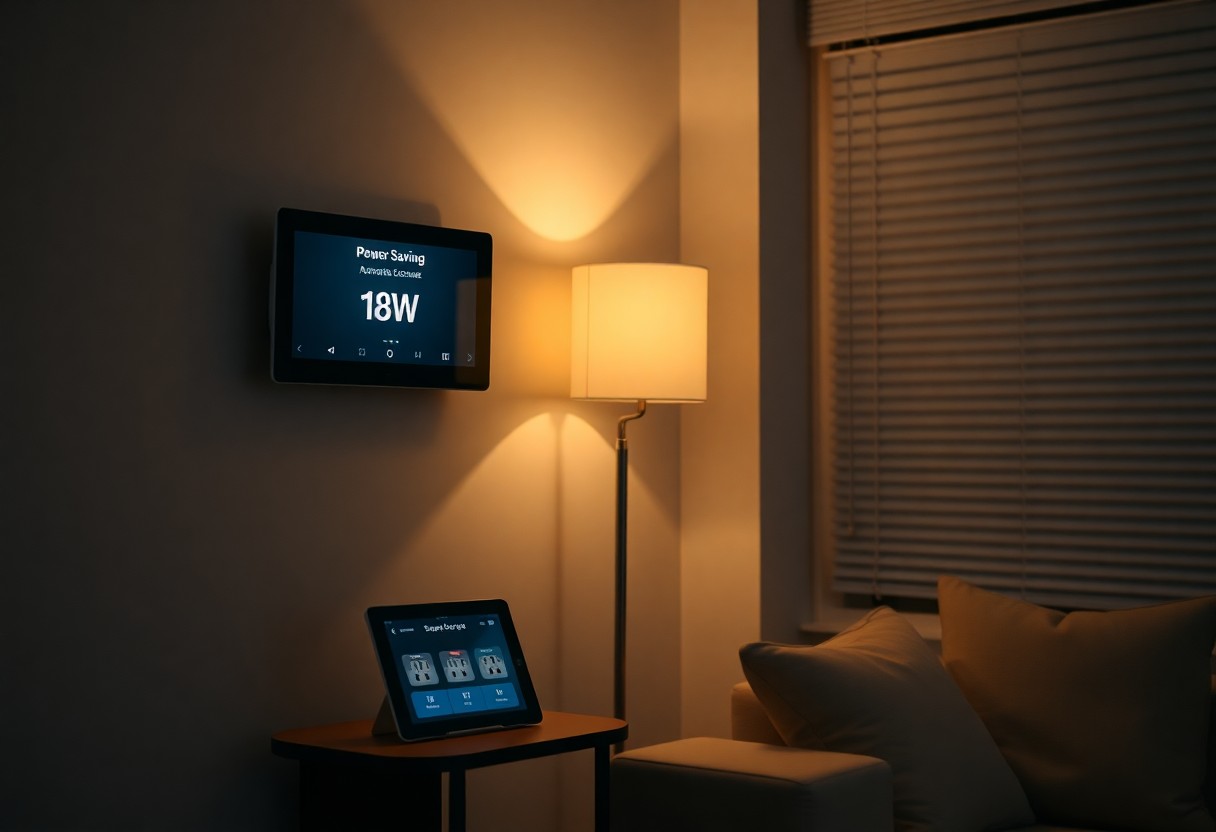
Configuring and Automating
When you tweak power profiles, favor balanced settings and use per-app limits so you can extend battery life without sacrificing vital functions; the OS often exposes profile switching and quick-return options to simplify changes.
Manual toggles, Control Center / Action Center shortcuts
Toggle power mode from the Control Center or Action Center to instantly cut background activity and dim screens; if you rely on real-time apps, set exceptions so critical notifications aren’t blocked.
Scheduling, adaptive rules and third‑party automation tools
Schedule power changes using built‑in timers or adaptive rules so modes switch at thresholds, time, or location; be aware that automation can save hours of battery but may require third-party permissions.
Advanced setups let you combine geofencing, battery thresholds and app whitelists via Shortcuts, Tasker or scripts; you should test rules to avoid missed alerts and confirm privacy with each tool.
When to Use and Best Practices
Use power saving mode when your device nears low charge, you need longer standby, or during travel; it reduces background activity and screen brightness so you can stay connected longer without major inconvenience.
Balancing battery life with performance and connectivity needs
Balance battery and performance by toggling power saving features when you need extra uptime, but keep vital connectivity like calls and messages enabled to avoid missing critical alerts.
Practical tips to extend battery without full sacrifice
Apply simple steps: lower screen brightness, limit background app refresh, use Wi-Fi over cellular, and disable location services for nonvital apps to extend battery without severely hampering functionality.
- Power saving mode
- Battery life
- Performance
- Connectivity
After toggling settings, you should monitor battery usage to see what impacts you most.
Fine-tune additional settings by prioritizing vital apps, scheduling sync intervals, enabling dark mode where supported, and using adaptive brightness; you’ll preserve core functions while cutting background drain so you don’t have to enable full restrictions.
- Screen brightness
- Background apps
- Wi-Fi
- Location services
After testing changes, adjust until you reach the preferred balance between uptime and usability.
To wrap up
To wrap up you should enable power saving mode when battery levels are low, signal is weak, or app usage is high; it limits background activity, dims the display, and reduces performance so you can extend runtime while maintaining vital tasks.